Up next in 10



🎯Check out the Acmer P3 Laser Here: https://geni.us/AcmerP3
🧠 Related Videos – Laser Safety for Beginners:
https://youtu.be/IAf-Z-9_U64
––––––––––––––––––––––––––––––––––––––––––
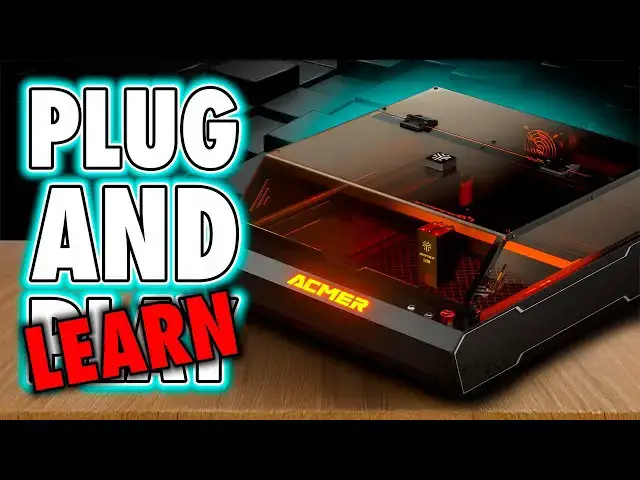
🎯 Plug and Play? Not Quite. Here’s what they don’t tell you about the Acmer P3 laser engraver — and why it still might be worth your time.
If you've been tempted by the sleek looks and big promises of the Acmer P3 laser engraver, you're not alone. An enclosed, desktop-friendly, “plug-and-play” machine with autofocus, auto air assist, a built-in camera, and LightBurn compatibility? Sounds like the dream setup for beginners.
But here’s the truth: it's not plug-and-play — it's plug and learn.
This is my full Acmer P3 review, from the perspective of someone who primarily covers 3D printers but knows how deep—and sometimes frustrating—the laser engraving rabbit hole can go. And for those of you coming from 3D printing, be warned: lasers demand more from you than just dragging in an STL and pressing “Go.”
The Acmer P3 gets a lot right. The build quality is impressive, the enclosure is sleek and low-profile, and the built-in safety features go way beyond what you get on open-frame diode lasers. But if you're hoping to just slap it on your desk and start making money engraving tumblers by lunchtime? You're going to have a bad time.
You need to learn LightBurn (or Acmer’s own software), calibrate your camera, understand your material presets, and manually position jobs with more care than most beginners are used to. Even the “automatic” features like air assist and autofocus require a bit of hands-on understanding before they actually do what they say.
This video covers everything that actually matters — the real user experience. Not just spec sheets or marketing slides, but the actual steps between unboxing and getting your first successful engrave. I’ll show you what works well, what’s frustrating, and what I wish I’d known going in.
Show More Show Less View Video Transcript
0:00
So, we're back with another laser
0:01
review. For those of you used to my 3D
0:03
printing content, I did say I've got a
0:05
few of these to get through. Now, I
0:06
initially wanted lasers on my channel
0:08
for little more than having experience
0:10
with the technology. I wanted this as
0:12
lasers are now being added to 3D
0:14
printers, so I want to see how these
0:16
add-ons compare to dedicated units.
0:18
However, as I've done more of these, the
0:20
laser community has been incredibly
0:22
welcoming and quite favorable to my
0:24
everyman approach to people who are
0:26
interested in this tech. We'll get to
0:28
that. As for this, the Acma P3, well,
0:31
for those of you familiar with the
0:32
channel, I'll say this is the laser
0:34
equivalent of a Soval SPO8 FDM printer.
0:37
And there's your review in a nutshell.
0:39
And for those of you who have no idea
0:41
what that means, stick with me. Hi, I'm
0:44
Ross and this is Fauxhammer Videos.
0:46
Right, disclaimer time. Acma sent me
0:48
this machine for free. My thoughts are
0:50
my own. I wasn't paid to make the video,
0:52
but if the video was helpful and you
0:54
decide to buy it, I'd appreciate you
0:56
using my affiliate links in the video
0:57
description before you do. I'll make a
1:00
commission on that sale, and it cost you
1:01
nothing. And for those who want to call
1:03
me a shill right now before even hearing
1:05
what I've got to say about this, please
1:07
add that comment and exit the video. For
1:09
the rest of you who are intelligent
1:10
enough to spell IQ, here we go.
1:13
Immediate presentation is nice. Acme
1:15
have bothered to have branded packaging
1:16
rather than a plain cardboard box. And
1:18
this extends to the contents. They've
1:20
also provided a decently sized and
1:23
somewhat decently translated manual,
1:25
too. And this, which is also included
1:27
digitally on the included SD card, is
1:30
super helpful during the unboxing and
1:31
setup. The SD card also contains a solid
1:34
video guide, too. We'll come back to
1:36
that in the most important part of the
1:38
video, usage. For now, the main callout
1:41
spec is that this has a decent cutting
1:43
area of 400 by 390 mm, and this is
1:47
within the area of the included
1:49
honeycomb bed. Worth noting for
1:51
beginners, this is a Corxy engraver, so
1:53
the laser itself always points directly
1:56
downwards, and the whole head moves as
1:58
it does its jobs. For engraving, this is
2:01
typically slower than fixed point galvo
2:03
lasers, but it's much better for cutting
2:05
tasks because this delivers a straight
2:07
vertical cut. When it comes to lasers on
2:09
this machine, there are three options to
2:11
choose from. A two-in-one module, which
2:13
houses a 10 watt diode laser and a 2
2:15
watt infrared laser. Then there's a
2:17
dedicated 24 W diode laser along with a
2:20
larger 48W diode laser. The latter of
2:23
which can actually be manually switched
2:25
down and become a 24W diode unit. So,
2:29
when buying this machine, that's
2:31
something you need to consider up front.
2:33
I've got the 2-in-1 along with the 48W
2:35
module which allows me the ability to
2:38
use all of the presently available power
2:40
ratings. And why would you want these
2:42
different units? Well, diode lasers are
2:44
used for materials like wood, leather,
2:46
and opaque acrylic. The higher power
2:48
lasers can engrave and cut deeper and
2:51
faster, but the beam diameter is a
2:53
little wider. For example, the 10W laser
2:56
is about 0.08 08 mm or 80 microns. And
3:00
it's almost double that at 0.14 mm or
3:04
140 microns for the 48 W laser. But this
3:07
measurement of course assumes you've got
3:08
a perfect focal distance, which is an
3:11
important point to discuss shortly.
3:14
Going back to setup, this is
3:16
straightforward and setup is simple.
3:18
Just pull out all the internal foam
3:20
which encases most of the included
3:21
hardware. Removing the tape and plastic
3:24
covering the acrylic lid is an annoyance
3:26
because this stays under every single
3:29
screw. In my case, I had to remove each
3:31
and every one in order to get this off,
3:33
which was mildly annoying. And as far as
3:36
lasers go, this is technically a budget
3:39
model considering the spec and the
3:41
price. And whilst the acrylic lid is
3:43
clearly a budgetconscious fingerprint
3:45
magnet along with the rest of the metal
3:47
housing, AKMA have done a solid enough
3:49
job of making this come across as quite
3:52
professional. Ports wise, we've got a
3:53
large extraction port on the back. A
3:55
flexi hose and compression clamp comes
3:57
with the unit. Now, I'm still waiting on
3:59
a way of setting up a proper extraction
4:01
vent to outside in my office workshop.
4:04
So, AKMA were kind enough to send me
4:06
their filter box. This is an optional
4:09
extra. It's a large multimaterial filter
4:11
in a box and the back end of the hose
4:13
clamps to the top so the big fan can
4:16
suck air through the filter. However,
4:18
unlike others of these I've seen, the
4:20
output of this is just vents on the back
4:22
of the box where others have provided a
4:25
hose outlet so you can further vent this
4:27
outside making this a pref filter. On
4:30
this device, it's got a power socket and
4:32
rocker switch there on the back and on
4:34
the front there are only two controls.
4:35
One adjusts the fan speed. The other is
4:38
a timer up to 120 minutes. But in order
4:40
to run the device, you do need to turn
4:42
the timer to on and set it to a time.
4:46
Going back to the machine's ports, most
4:47
of the important stuff is on the right
4:49
hand side near the front. You've got the
4:51
main power socket for the power supply.
4:53
Though, it is worth noting that if you
4:55
do upgrade to the 48W laser, you do get
4:58
a larger power supply unit that is
5:00
backwards compatible with the smaller
5:02
modules. There's also a USBB port for
5:04
connecting this to a nearby computer
5:06
with a standard USB cable included in
5:08
the box. And finally, there are the
5:10
ports labeled pump and hose which both
5:13
power the external air compressor and
5:15
the hose connection for the air assist
5:17
to allow the air in. Now, there's also
5:19
three connections on the inside of the
5:21
machine which are behind the front cover
5:23
on the right. one for the camera, which
5:25
should already be connected to the lid
5:27
mounted top- down camera, along with a
5:29
micro SD card slot, and connector for
5:32
either of the roller accessories, which
5:33
are optional extras. Personally, I'm not
5:36
a fan of these sockets being inside,
5:37
especially the micro SD slot,
5:39
considering the amount of smoke sort,
5:41
and other crap that lasers tend to kick
5:43
off while they're performing jobs. Now,
5:45
as for these extras, one is a rotary
5:47
tool, which has numerous mounting
5:49
options, and the other is a conveyor
5:51
feeder, which will allow you to engrave
5:53
materials up to almost 2 1/2 m long,
5:56
which is a pretty handy expansion for
5:58
some huge projects. This is something I
6:01
wouldn't mind having to play with if I
6:02
had either it or the space. Now, just a
6:05
couple of extras that I forgot about.
6:07
There's also an internal light. And to
6:09
turn this on, there's a manual rocker
6:11
switch on the back along with another
6:13
switch for the internal fan. On the
6:15
front, we've got a couple of key safety
6:16
features. A security key, and you cannot
6:19
operate or even power up the machine
6:21
without this inserted and turned to the
6:23
on position, and then there's the estop,
6:25
which works on this machine by cutting
6:27
the power. Now, unfortunately, these
6:29
don't have the best placement as the lip
6:31
of the lid is only millimeters spare
6:33
when inserting the key, and the estop is
6:35
perfectly placed to keep knocking it
6:37
every time the lid is closed, at least
6:39
for those of us who are right-handed.
6:41
And finally, between both of these is
6:43
the power button. So, that's it. That's
6:45
all its hardware, but what is it like to
6:47
use? Well, much of this depends on where
6:50
you're coming from when buying a laser.
6:52
people are picking up interest in them
6:54
as more devices are marketed towards the
6:56
average home user and that is who I am
6:59
who my channel is aimed at. So with that
7:02
in mind and specifically that this one
7:05
is well
7:07
kind of in the middle because right so
7:10
this goes a couple of ways when it comes
7:12
to the software. There's no UI on the
7:14
machine. All the commands are sent to it
7:15
via an external CAM controller software.
7:18
AMA have their own software but I'll
7:20
talk about LightBurn first because when
7:22
opening the manual that's pretty much
7:24
what they guide you through. Now, I
7:26
honestly didn't even know they had their
7:27
own software until I got much later into
7:30
the review. And in truth, if you're
7:32
getting this laser, you're going to want
7:34
to be using LightBurn. And I've
7:36
mentioned this software in many previous
7:38
videos, and it's a third party software
7:40
you need to pay for. So, please check
7:42
out their website and factor that in on
7:44
top of the price of this machine. Yes,
7:46
there's also Laser GBL, which is
7:49
freeear, but most people just suck up
7:51
the price and use LightBurn. That's what
7:53
most of the guides are out there for.
7:55
And well, compared to some of the
7:57
machines on the market, a lot of this
7:59
printer's limits do come down to the
8:02
integration with LightBurn itself and in
8:04
some ways just LightBurn itself. Look,
8:06
I'm not here to review that software,
8:08
but on the top level, this is an
8:11
incredibly powerful software.
8:13
incredibly, but it's also just an aged
8:16
software where the UI has been built
8:18
around plugging in more features over
8:20
time when they've come out and they go
8:23
where they fit. So, when it comes to
8:25
using this machine, you need to install
8:28
different profiles depending on the
8:29
laser head you use, perform camera
8:31
calibration and follow-up alignment,
8:33
which I have to say is both a chore and
8:36
more frustrating when I was met with
8:37
numerous USB disconnects my first time
8:40
through it. But that was a USB extension
8:42
cable problem. I managed to sort it. But
8:45
this setup basically involves moving a
8:47
card full of dots around the bed and
8:49
snapping pictures. And they do provide
8:51
this dot card in the box. But then you
8:53
have to also go through alignment to
8:55
engrave markings in all four corners to
8:57
inform the software how to compensate
8:59
for the camera's optical distortion. And
9:01
even after that, well, I tested it by
9:04
lasering a few areas. And like pretty
9:06
much every laser camera I've come across
9:08
so far, the accuracy is okay. And it
9:12
only really works when engraving things
9:14
at low heights. As soon as you add
9:17
things in there that are pretty thick,
9:19
again, optical distortion comes into
9:21
play and things become slightly offset.
9:23
Where I found this to become frustrating
9:25
is because the different laser modules
9:27
are all set up in LightBurn as different
9:30
devices. You need to run through this
9:32
for every single laser module you have.
9:35
That means 10 watt IR, 24 watt, 48 watt
9:39
because LightBurn sees them all as
9:41
separate machines. But then, and I'm
9:44
sure many seasoned laser professionals
9:46
will look at my next comment as, "Yeah,
9:47
that's normal." But you also need to run
9:50
your own test grids on all the materials
9:52
you plan to use. Now, AKMA do provide a
9:54
sheet of paper with each module showing
9:56
various starting points, but this is a
9:58
far cry from competitors who not only
10:00
provide various profiles for different
10:02
materials out the box, but also have
10:05
software that shows visual examples that
10:07
you can just select from to get the
10:09
result you want. LightBurn itself
10:11
doesn't seem to support visual keys in
10:13
their library module. And even if they
10:15
did, ACMA haven't provided profiles. So,
10:19
we talk about Acma's own software, and
10:21
it's in beta. And I'll be honest, even
10:24
that description is a bit of a stretch.
10:26
Now, on the plus side, in this software,
10:28
they do have several profiles available
10:30
to get you started, but you can't seem
10:32
to access these and see what any of the
10:34
settings are or create your own. And
10:37
there are serious limits when loading a
10:39
complex file like this Marvel May and
10:41
calendar design. The software is
10:44
painfully slow. And when it came to
10:45
generating the G-code path, it took so
10:48
long that I was able to think, "Wow,
10:50
this is taking long. I should be timing
10:52
this." I then looked for an online
10:54
stopwatch, decided between two or three,
10:56
loaded it up, dragged it onto the
10:58
screen, and got it started at about the
11:00
halfway point. That's how slow it is.
11:02
Then there's more basic stuff like when
11:04
pressing controll + a assuming it would
11:06
select all the elements in the preview
11:08
window. No, it selects all the UI text
11:11
elements. That's that's just weird. So
11:14
yeah, this is fine if you want to do the
11:17
absolute most basic engraves, but
11:19
anything even slightly complex, this
11:22
software just isn't there yet. But then
11:24
there's the phone software. It's Android
11:26
only for a start, extremely limited, but
11:29
this is the only way to connect to the
11:31
machine using Wi-Fi. And it's a direct
11:34
connection, too. Phone to P3. No adding
11:37
this to your network to access it
11:38
remotely. I genuinely need to know if
11:40
anyone would even consider using
11:42
expensive laser this way. That's a
11:45
serious question. Overall though, and
11:47
again, if you're new here, the way I
11:49
tend to approach reviews is pick as many
11:51
nits as I can and you decide if you can
11:54
put up with them. Yes, functionally this
11:57
works. When it comes to what I
11:58
understand standard lasers to be, this
12:02
is part for the course. The barrier to
12:04
entry is twofold. One is lightb burn.
12:07
You're going to need to learn it. And
12:08
honestly, it's not that hard. The second
12:11
is laser focusing. Now, you may or may
12:14
not know that your laser needs to be the
12:16
correct distance from the material it's
12:18
engraving or cutting to get a sharp
12:20
line. We touched on this earlier. And
12:22
because this machine has no Z-axis
12:24
mechanism, it's controlled manually.
12:26
Each laser has a level on the side which
12:29
drops down. Place this on top of your
12:31
material and secure the laser head in
12:33
place with two bolts. And that should be
12:35
the correct distance, give or take a
12:37
millimeter or two. Unfortunately, a
12:39
millimeter or two can make a big
12:42
difference with lasers. And you do need
12:44
to be careful with this. Make sure you
12:46
manually raise and lower the laser until
12:48
the bracket is just touching the
12:51
material. Because if you just leave the
12:53
laser loose with this notch just
12:54
pressing on the material, its own weight
12:57
will actually push it down and flex the
12:59
honeycomb plate below it. So, as soon as
13:01
you move the lever out of the way, the
13:03
material will flex back up, giving it
13:05
the wrong focal distance, which has
13:07
personally been one of the most
13:09
frustrating cruxes of this machine. But
13:11
I have to appreciate that this is still
13:13
better than older lasers, but I can't
13:16
ignore the fact that there are other
13:17
machines out there with more precision
13:20
control. So whilst I'm not a seasoned
13:23
laser pro and many experienced users
13:24
will probably look at this as a handy
13:26
feature versus what has come before,
13:28
yeah, we have other machines on the
13:30
market where the Z distance is more
13:31
controllable and the focus is more
13:34
clearly measurable. And that is probably
13:36
why I personally wouldn't come back to
13:38
this one as often as one that is more
13:41
automated. There's just so much manual
13:43
setup required per job that I don't need
13:47
to deal with anymore on other machines.
13:49
That's why I started getting into lasers
13:51
because they made this stuff easy. And
13:55
here it's not so easy. I'm again I'm new
13:58
to this. I'm constantly second guessing
14:00
myself. Is this in focus or could it be
14:04
better? On other machines, I just have
14:06
more trust that it's bang on. Now,
14:08
finally, on safety, we've talked about
14:10
this emergency stop, but this is also
14:12
advertised as a class one laser device,
14:15
at least on the page for the 48W unit
14:17
anyway, meaning under normal operation,
14:20
it's safe to use, and normal operation
14:22
means the lid is closed. And I do have
14:24
an open question regarding the two-in-1
14:26
unit and whether or not that shielding
14:28
is adequate for the IR laser. Now they
14:31
do provide you with glasses but without
14:33
CE markings or an OD rating. I'll do
14:35
what many of my commenters have
14:37
previously suggested and consider these
14:39
as trash that I won't use in lie of my
14:42
own that I trust. I've got a separate
14:44
video on optical safety that you really
14:46
should check out if you're even thinking
14:48
of using a laser and I'll make a pop-up
14:50
link above and drop another link in the
14:53
description. The one question I do have
14:55
is because I noticed this when I was sat
14:57
at my desk and I could see a glow at eye
14:59
level. The bottom of the unit, including
15:01
the honeycomb plate, does just slide out
15:03
of the machine as a drawer, which is
15:05
handy when cleaning off cut material.
15:08
But the fact that the laser light can
15:09
escape from here, I worry does pose
15:13
enough risk to make me wonder who
15:15
exactly verified this machine as a class
15:17
one laser device. But I am someone who
15:19
is perhaps overly concerned about laser
15:22
safety. I have reached out to ACMA and
15:24
they have sent me a safety certificate
15:26
confirming this is a class one device.
15:29
But in summary and to conclude on this,
15:31
overall I'd say this is fine. It's
15:33
decent. It's not oh wow, but it is a
15:36
budget device. And what I like is that
15:38
AKMA aren't really overinflating this to
15:41
be some magic wonder device either. For
15:43
the most part, it does what it says on
15:45
the tin. There is some marketing
15:47
hyperbole suggesting that it's just as
15:49
easy to be creative on your phone is,
15:52
I've got to be honest, a joke. And is
15:54
this really the world's first diode and
15:57
integrated dual laser with IR2? Because
16:00
I've tested several lasers before this,
16:02
and the majority are both diode and IR
16:05
in one module. Again, serious question.
16:07
But even if this is a world first, cool.
16:10
But does it matter if the world already
16:11
caught up? Overall, look, this is a
16:14
decent size machine with a versatile
16:16
array of options from the 10W 2in1 laser
16:19
all the way up to 48 watt. Then you've
16:21
got the rotary module and most
16:22
impressively the conveyor. There's a lot
16:25
to love here. But on the other side of
16:27
the coin, focusing is very manual and
16:29
analog. And dare I say, the software
16:32
side of things is swiftly becoming a bit
16:34
legacy when compared to competitors.
16:37
Okay, perhaps legacy is an
16:39
overstatement. Standard would be another
16:41
way to look at it. But the point is, if
16:43
you're after a laser that's going to
16:45
hold your hand so you can just get on
16:46
with jobs, this isn't currently the one.
16:50
You will be tweaking and testing quite
16:52
often. If Acma really want to push into
16:54
the casual or hobbyist markets, they've
16:56
got a lot of work to do on their own
16:58
app. But again, if you don't mind the
17:00
config or even expect the extra work,
17:02
perhaps you're a fan of measure twice,
17:04
cut once, there's an absolute ton to
17:06
love here, especially for the price. I
17:09
want to say thanks for watching with the
17:10
biggest thanks going to our members who
17:12
are on screen now. Please consider
17:14
signing up as a member. You can get your
17:16
name in lights, Discord rolls, early
17:17
access, and some exclusive videos. If
17:20
you do decide on picking this up and
17:21
this video was helpful, at least to help
17:23
you expect what you're going to get when
17:25
you get it, then I'd appreciate you
17:26
using my affiliate link in the
17:28
description or first comment before you
17:30
make your purchase. Until next time, ET
17:33
phone home. Faux hammer out.
17:40
[Music]